Render Settings
-
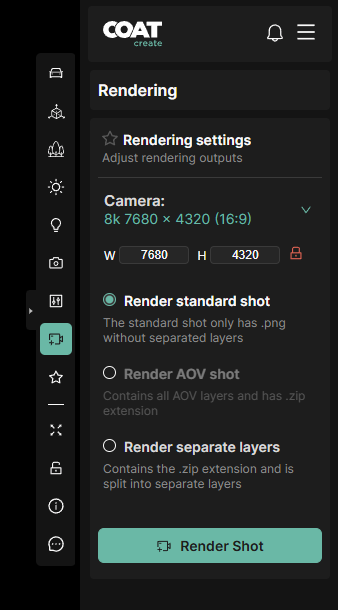
Camera - Click on the drop down to choose a render size. Several common sizes are preset in both 16:9 or 4:3 aspect ratios. If a specific resolution is required choose "custom" to enter a custom size. Unlock the image aspect ratio by toggling the lock icon if you need to change the dimensions independently.
-
Render standard shot - The default render type. The standard shot will render only a png, similar to taking a photograph with your phone. This render type is supported up to 8k.
-
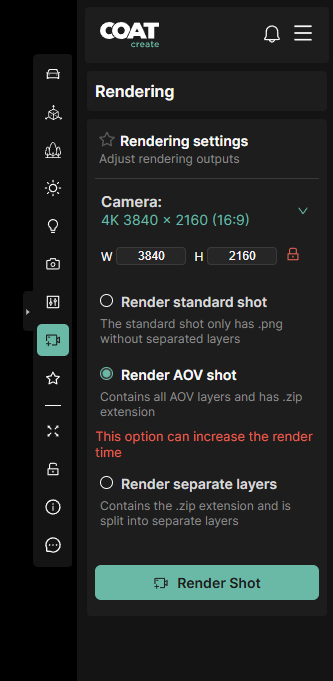
Render AOV shot - This render type will generate multiple exr files and an png file. The EXRs are Arbitrary Output Variables (AOV). Each exr is different element that can be used to recompose the final render for extended control in compositing or retouching. This render type is supported up to 4K.
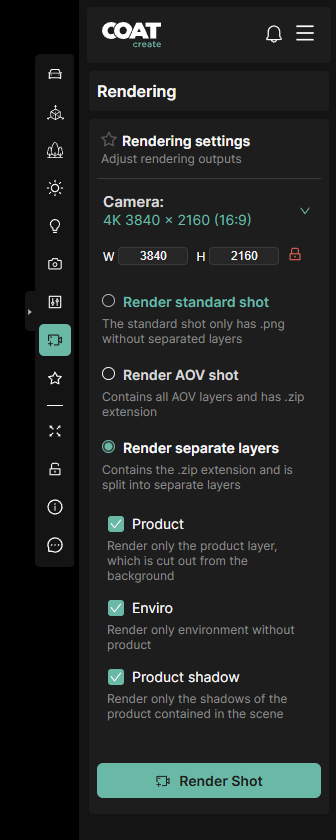
- Render separate layers - This render type will generate three png outputs. One of the environment, one of product with a pre-multiplied alpha, and one of the product's shadow, also with a pre-multiplied aplha. This render type is supported up to 8k.
- Render Shot - Submits a render to the Queue it will show up in the Render Tray at the bottom of the window. Submitted renders will display their postioin in the queue, and then the precentage of completion once they have begun. Submitting a render to the Queue does not tie up your session of Coat, the rendering is handled by additional machines in the cloud, you are free to continue creating addtional shots.
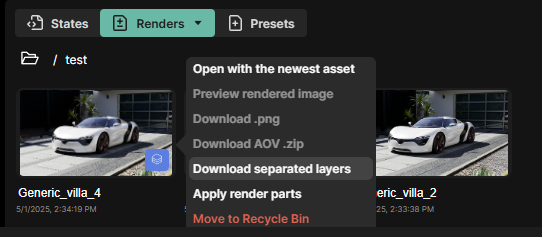
When you download a standard render a png file will be downloaded.
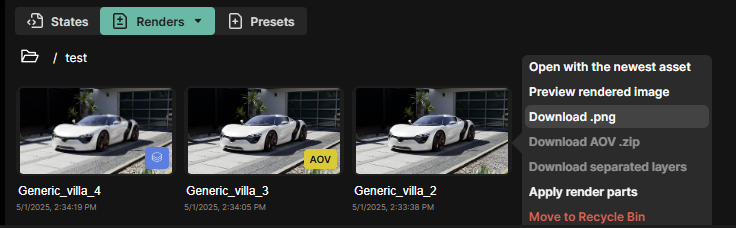
Layered renders and AOV renders are clearly labeled with a badge. If an AOV is downloaded it will be a zip file containing all the exr passes and a png.
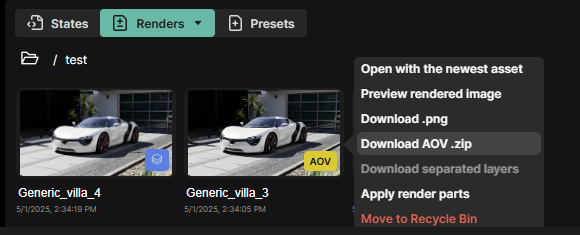
Layered renders will also be downloaded as a zip file containg the background, product and shadow layers.