Custom Lighting
Custom Lightning
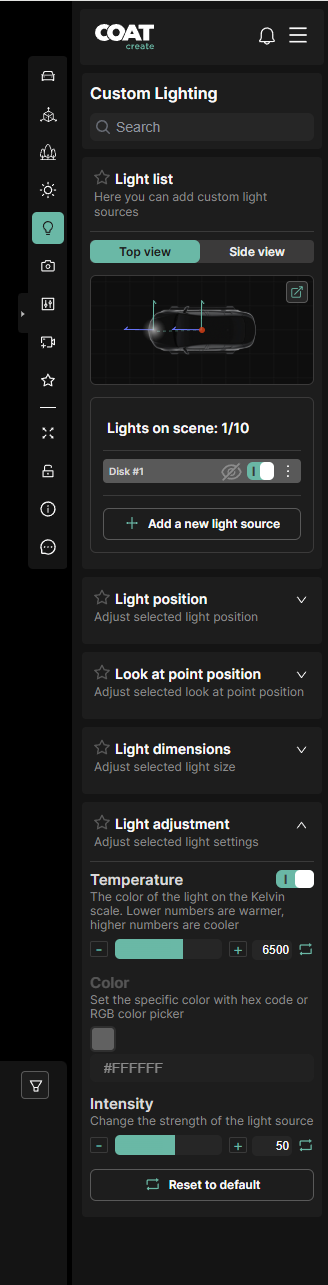
Custom Lighting allows the user to create and place lights in the scene to enhance and improve the product.
-
Custom Lighting - The search box filters the below menus.
-
Light List -
-
Top view / Side view - Change the view of the scene to display and manipulate a selected light's position within the scene.
-
Pop out window -
In the upper right corner, the Top view/ Side view window can pop out for greater control over the placement of lights.The floating window and be moved around, resized, and zoomed into onscreen.
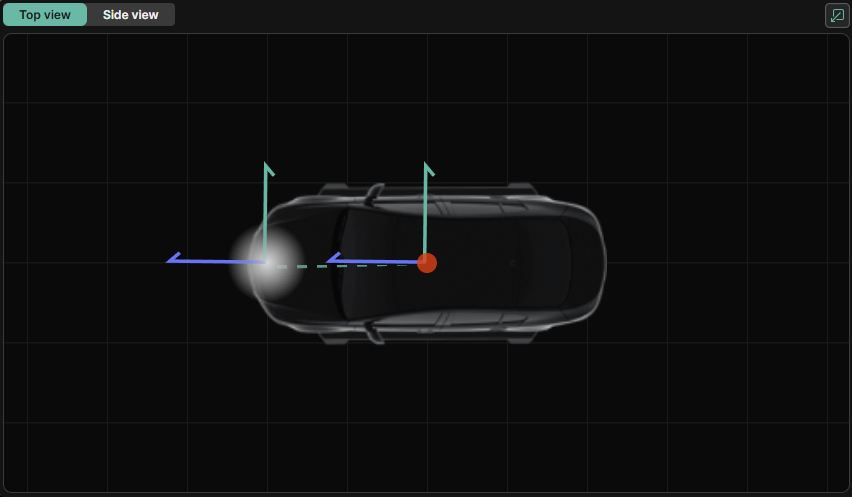
The icon in the upper right of the Top view/ Side view window will dock or undock the window back in the right hand menu.
The view of the "car" is only a representation and does not reflect the actual size of your product.
A selected light will have active transform gizmos to reposition in the Top view/ Side view window and thus in the scene. Moving the in the top view will move the light horizontally in the scene and moving in in the side view will move it vertically.
Add a new light source - creates your choice of a rectangle, point or disk light.
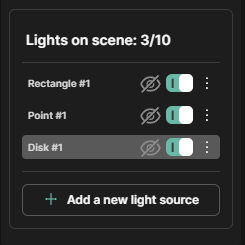
Once a light is created you can double click it name to rename it.
The eye icon next to the name determines if the light source is visible to the camera (it will always be visible in reflections).
The toggle switch activates or deactivates the light.
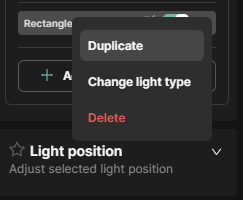
The three vertical dot menu to the far right will bring up a sub menu that will allow you to
-
Duplicate the selected light
-
Change the light type from the current to any of the other options
-
Delete the selected light
-
-
-
Rectangle Light
A rectangle area light with a target. Similar to a soft box, This light type illuminates directionally toward it's target.
-
Point Light
A point light is similar to an uncovered light bulb in the scene. This light type emits light in all directions equally
-
Disk Light
A disk light is a circular area light with a target. This light type illuminates directionally toward it's target.
-
Common Light Parameters
All lights have the following settings:
-
Light Position - the position of the light in the scene. Use this window to specifically set the position of hte light.
-
Lock light to the car - this will lock the position of the light to the position of the car. If you move the car, the light will follow.
-
Light dimensions - change the size an scale of the light. This option will vary by the light type:
Rectangle light -
Width and Height, changes the size of each side of the light.
Rotation, change the rotation of the light to spin the light around the axis of it's target.
Disk and Point Light -
Radius, changes the size of the disk
-
Light adjustment -
Temperature - Changes color temperature of the light in the kevin scale. Warmer lights have a lower value, cooler lights have a higher value.
Color - Sets the color of the light in RGB, to use this toggle off Temperature above.
Intensity - sets the intensity or strength of the light.