COATcreate
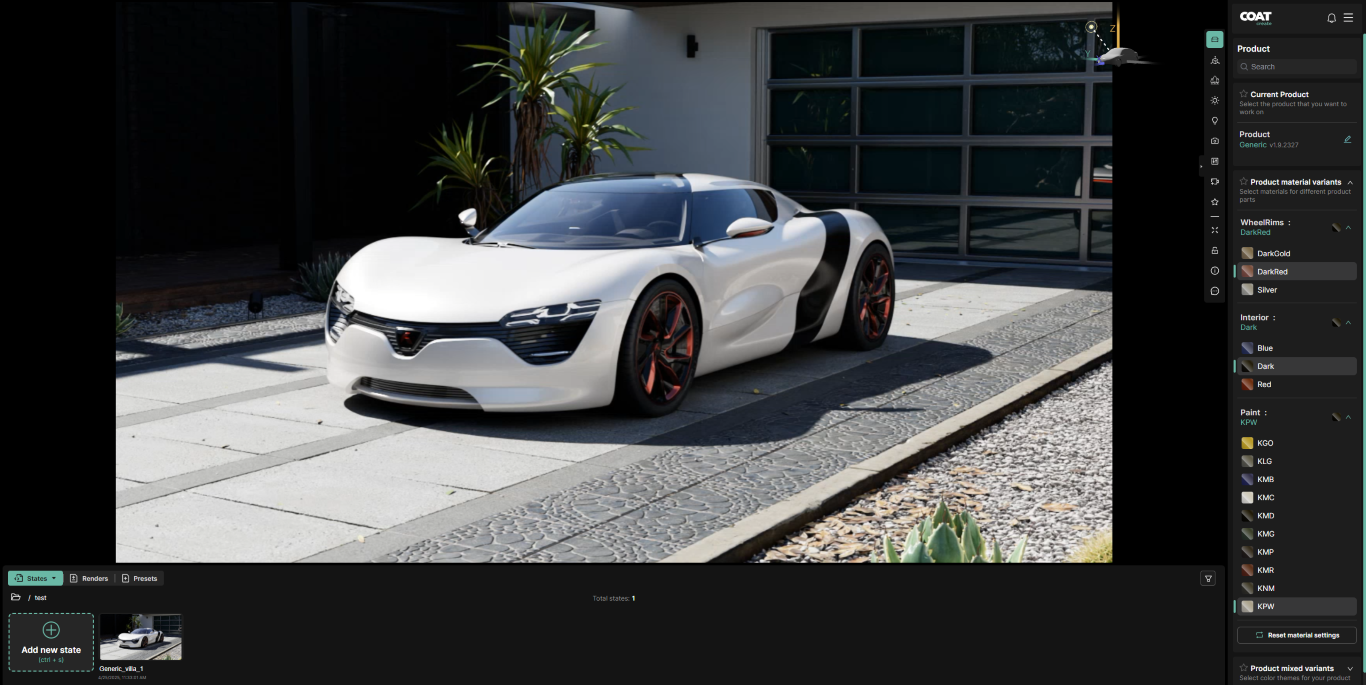
Once you have a workspace open you are presented with the content creation interface of COAT create.
COATcreate is divided into 3 main areas:
- The large display area that includes the orientation gizmo,
- The Lower area to display States, Renders and Presets.
- The menu along the right, which controls the options available in the current State.
The Main Window
The main window is the display of your current State, in your workspace of COATcreate. By default, the scene is set up with an "Orbit" camera. With an Orbit camera you can navigate in the window around the scene using a 3-button mouse with the following controls:
- Left Mouse Button - Rotate around the view.
- Middle Mouse Button - Pan left, right, or up and down.
- Right Mouse Button - Zoom in and out.
You can also navigate around by moving the display gizmo in the upper right-hand corner. This is less precise than using a mouse.
The main window will also display your image at the proper aspect ratio. If you select an Hd image at 16:9 the displayed image will also display at 16:9 or 4:3 or whatever image size you select. This allows you to always know what image you are creating.
The Lower Window
At the top of the lower window there are 3 options:
- States - States from your current workspace.
- Save State - Save the current configuration as a State.
- Upload State - Upload a State saved outside of COATcreate.
- Insert State Link - Place a link to a State in COATcreate.
- Renders - Renders in your current workspace.
- Save Render - Starts a new render of the current configuration.
- Upload Render - Select a render to upload to the current workspace.
- Presets - Preset cameras for the Product.
- Reveals 2 icons to the right: one for Exterior camera presets and another for Interior camera presets.
The Right Menu

The right menu controls the parameters that are displayed in the rollout to the right. The categories are as follows, from top to bottom:
- Product - All the configuration options ('variants') for the product.
- Pose a car - Transform, Rotate and any animations for the product.
- Environment - All the variant options for the environment.
- Lighting - Lighting controls for the sun and custom lighting.
- Camera - Camera options, such as fov and f-stop.
- Post Process - Options to manipulate the image after render.
- Rendering - Set resolution and set images to render.
- Full screen - Set the main window to fill your browser window.
- Camera Lock - Locks the camera, camera presets lock the camera by default.
- Version Information - Displays version info for debugging.
Menu
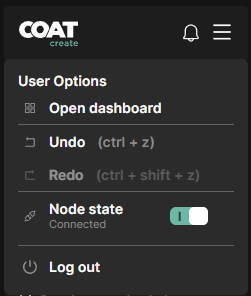
The triple bar menu button or "hamburger" menu has the following options:
-
Open Dashboaard - Opens the dashboard.
-
Undo - use the shortcut "ctrl + z" to undo the last action.
-
Redo - use the shortcut "ctrl + shift + z" to redo the last action.
-
Logout - opens the menu to logout and release your COATcreate license.