Dashboard
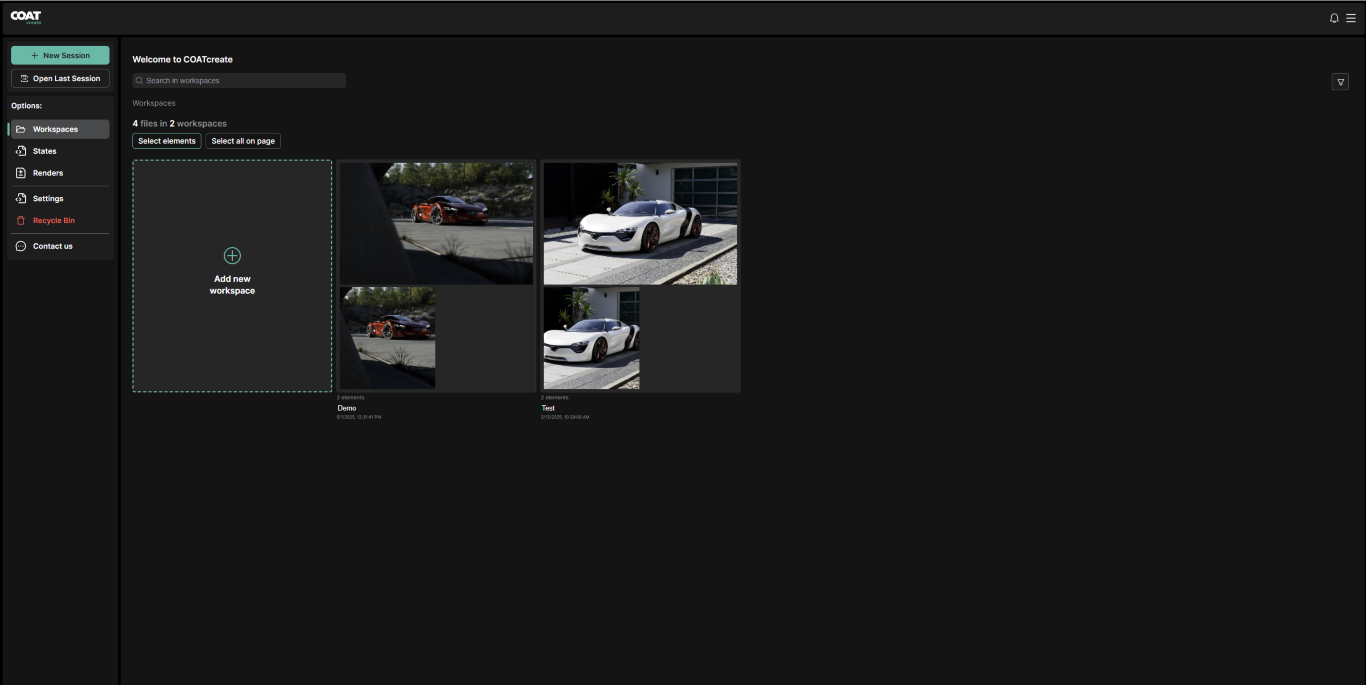
The dashboard is your file manager for COATcreate. There is a title bar along the top. With a left hand menu and a right hand display area.
Left hand menu:
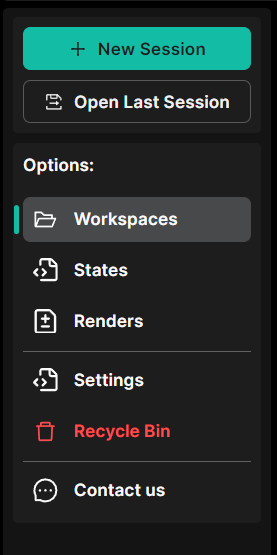
New Session
This will let you create a new workspace or a previous workspace and launch into it.
Open Last Session
This will open your previous workspace.
Options:
The options menu presents the following:
- Workspaces
- States
- Renders
- Settings
- Recycle Bin
- Contact us
Selecting any of these will modify the contents of what is displayed in the main window to the right. If you select "Renders" then only renders will appear in the window.
In the lower right section of the interface:
Right hand Display Area
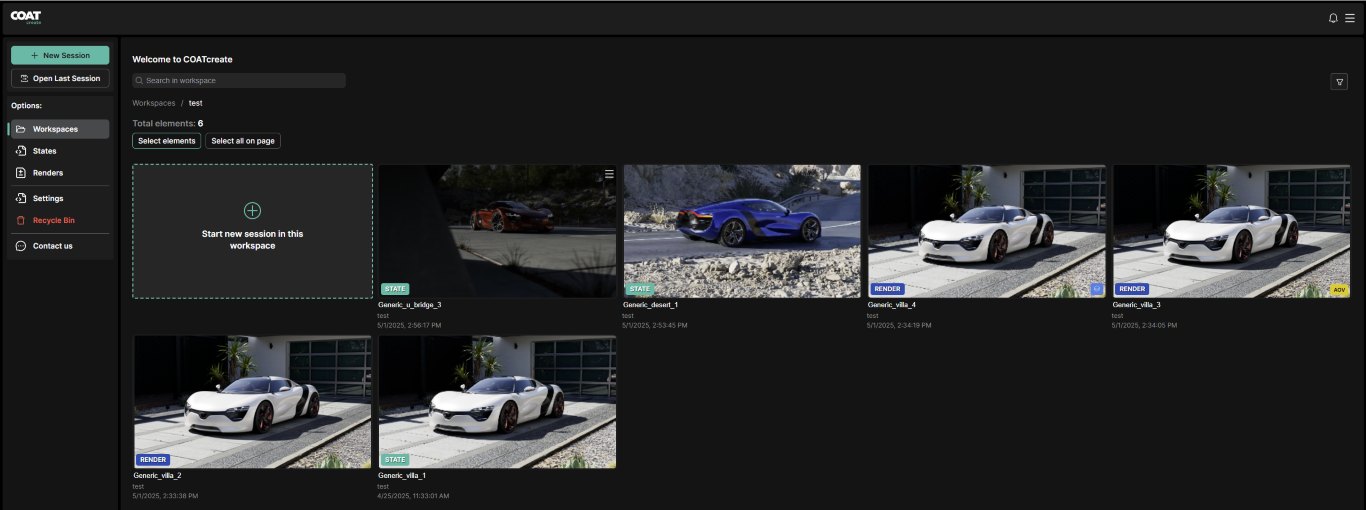
Search in Workspaces
By typing in keywords, you can search across all of your selected asset types, selected by the left hand menu.
Product Filter
The product filter is a drop-down menu of any vehicles your user currently has access to. By selecting a product, only the elements using that product will be shown in the display.
Environment Filter
The environment filter is a drop-down menu of any environments your user currently has access to. By selecting an environment, only the elements using that environment will be shown in the display.
Type Filter
The Type filter is a drop-down menu that lets you filter by either render or state.
Sorting Filter
The sorting filter gives you the following options to sort the selected elements in the right-hand Display area.
- Oldest First
- Latest First
- By Product
- By Environment
Elements
Once you have your selection made, you can select it to restore the element in COAT. There is also a menu for each element in the upper right-hand area. This menu will let you move, rename, download, open or delete the element.
Recycle Bin
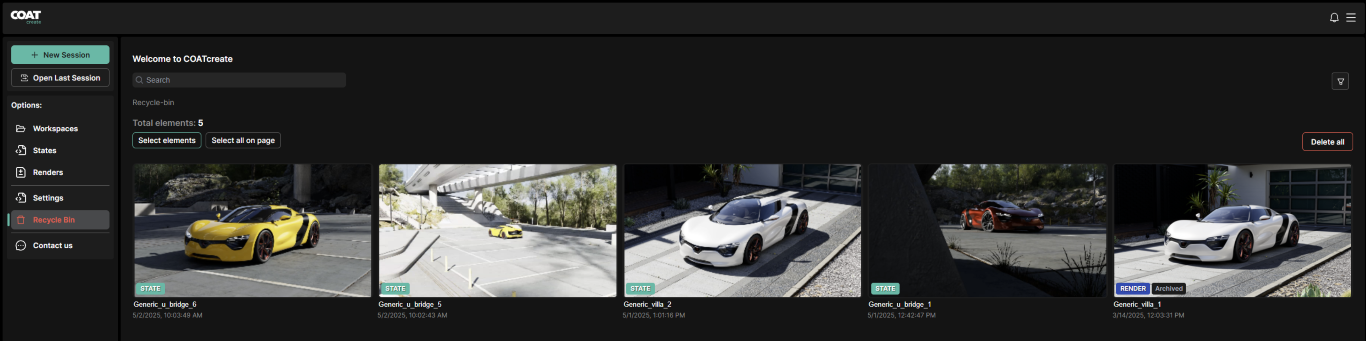
The Recycle bin is a holding area for files before they are deleted. Once a file is deleted there is no way to recover the file. Katana only ensures your active files are available in COATcreate.
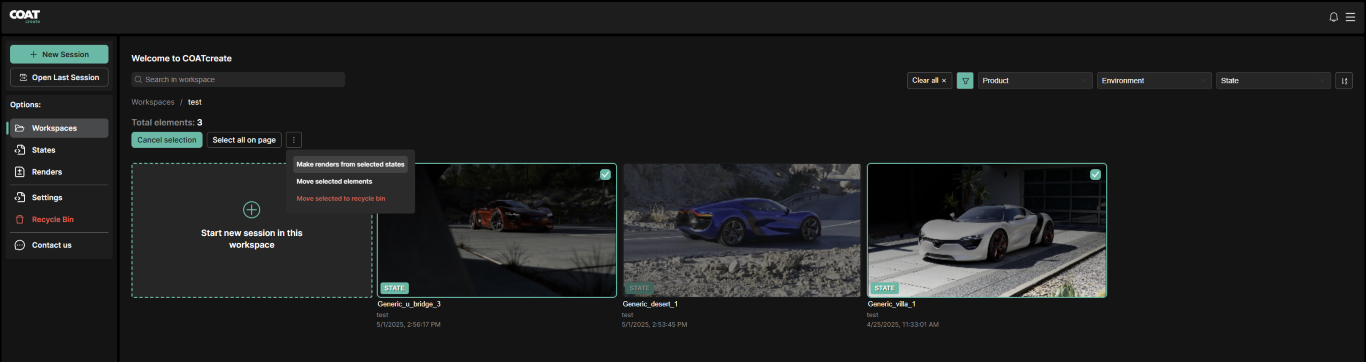
Multi Select Rendering
Users can now select multiple state in the dashboard to render them all together. From the dashboard click "Select elements", this allows you to select states from the current view (you can not select states across pages at this time). Once the selected elements have been pushed, a new menu will appear to the right of "Select all on page", you can then either move the states to the recycle bin, or render them. When you render the state, it will render the state as it was saved, including any render size saved in the the state.